> ## Documentation Index
> Fetch the complete documentation index at: https://docs2.zenskar.com/llms.txt
> Use this file to discover all available pages before exploring further.
# QuickBooks
## Setup guide
This guide will help you connect your QuickBooks account with your Zenskar account.
1. Log into your Zenskar account.
2. Click **More** in the main navigation menu and go to **Integrations** → **ERP** → **QuickBooks**.
3. Click **Connect To Quickbooks**, then click **Connect**.
4. Complete the authentication using your company’s QuickBooks credentials.
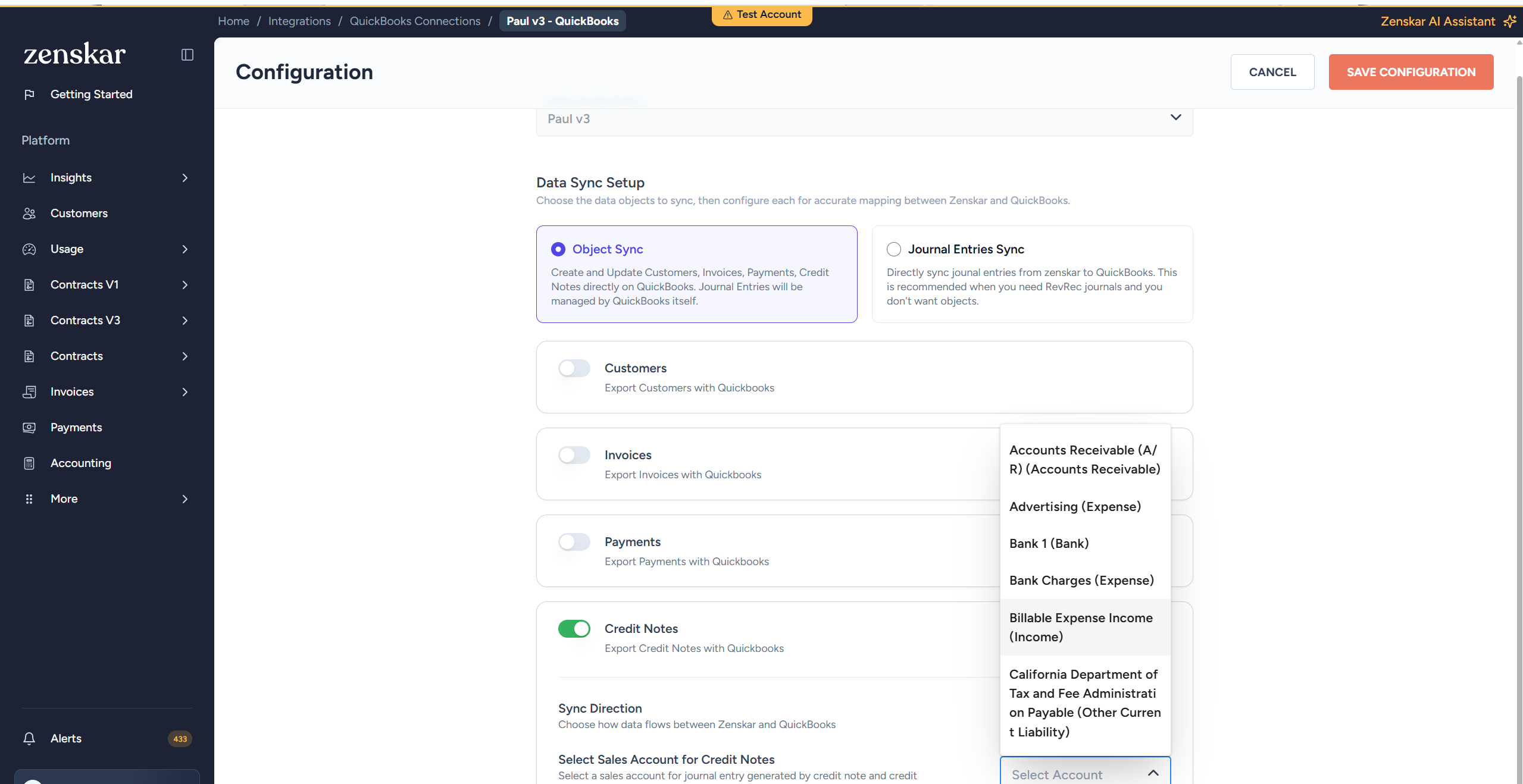
5. Select **Zenskar Entity** and **Data sync setup**.
### Object sync:
* **Customers** require the following additional configuration:
1. Select the **sync direction**. Syncs customer name, email, phone, address, and tax exemption status from Zenskar to QuickBooks. Customers are created as Customer objects in QuickBooks. Zenskar remains the source of truth.
* **Invoices** require the following additional configuration:
1. Select the **sync direction**. Exports invoices from Zenskar to QuickBooks with line items, tax details, and due dates. A link back to the Zenskar invoice is included in the private notes field.
2. Select **Sales Account** for Invoices. The GL account in QuickBooks where invoice line items will be posted. This is the revenue account that gets credited when an invoice is created.
3. Select **Tax Account** for Invoices. The GL account in QuickBooks where tax amounts from invoices are posted. Tax is applied at the invoice level, not per line item.
4. Select **Discount Account** for Invoices. The GL account in QuickBooks where invoice discount amounts are recorded. If your invoices include discounts, they are tracked separately in this account. If not configured, discounts fall back to the sales account.
* **Payments** require the following additional configuration:
1. Enable **Export Payments**. When enabled, payment records from Zenskar are created in QuickBooks and allocated against their corresponding invoices. A single payment can be split across multiple invoices.
2. Select the required **payment sources**. Select which payment types to sync (e.g., Stripe, manual). Each source maps to a deposit account in QuickBooks where the payment amount is recorded.
* **Credit Notes** require the following additional configuration:
1. Select the **sync direction**. Exports credit notes from Zenskar as Credit Memos in QuickBooks. If the original invoice is unpaid, the credit memo is automatically applied against it.
2. Select the **sales account** for credit notes. The GL account in QuickBooks where credit note amounts are posted. This is typically a revenue reversal or sales returns account
### Journal entries sync:
* **Customers** require the following additional configuration:
1. Select the **sync direction**.
* **Journal Entries** require the following additional configuration:
1. Select the **sync direction**. Exports double-entry accounting transactions (e.g., revenue recognition, adjustments) from Zenskar to QuickBooks as Journal Entries with debit and credit lines.
2. **Journal Accounts Mapping**: Maps each Zenskar account (e.g., Accounts Receivable, Revenue, Cash, Tax Withheld) to a corresponding QuickBooks GL account. This ensures journal entry lines post to the correct accounts in your chart of accounts.
6. Click **Save Configuration** to complete the setup.