> ## Documentation Index
> Fetch the complete documentation index at: https://docs2.zenskar.com/llms.txt
> Use this file to discover all available pages before exploring further.
# Xero
## Connect to Xero
1. Click on the drop-up menu at the bottom of the left sidebar.
2. Click on the **Settings** option on the drop-up menu.
3. On the **Settings** page, move to the **Connectors** tab.
4. Click on **ERP** filter to access the Xero connector. Alternatively, you may use the search box to search for Xero.
5. Click on the **Connect** button on the Xero card, and login to Xero, as shown in Fig. 1:
Fig. 1: Connect Zenskar to your Xero account.
6. Once the login is completed, you must allow Zenskar access to your Xero account, as shown below.
Fig. 2: Allow Zenskar access to your Xero account.
7. Once you allow Zenskar access to your Xero account, you will be redirected to the following page.
## Account Mapping
The account mapping will be as shown in Fig. 2:
Fig. 2: Zenskar and Xero mapping
Each Zenskar account must be mapped with an account on Xero, as shown in Fig. 3. The dropdown shows all the non-system accounts present on Xero i.e., accounts for which journal entry creation is possible. You can select an appropriate account:
Fig. 3: Zenskar and Xero mapping
If you find that the accounts listed are inappropriate, you can create a new account by checking the **Create Account** checkbox beside the dropdown. An account creation window shall appear, as shown in Fig.4:
Fig. 4: New Xero account creation window
* Enter a name in the **Name** field.
* Select an account type in the **Account Type** dropdown. The dropdown contains all account types supported by Xero.
* Click on **ADD**. You have successfully configured Xero.
## How Zenskar journal entries look on Xero
Xero does not allow you to create entries with line amount equal to zero. Therefore, entries created with line amount zero such as **Free units** are not synced with Xero.
The actual Accounts Receivable and other system accounts cannot be used to create Journals. This is a known limitation of Xero. Therefore, you should map the Zenskar Accounts Receivable with something similar in Xero. For example, you can use the **Create Account** checkbox to create a new account with similar name in Xero.
### Example 1: When credits are issued to a Customer
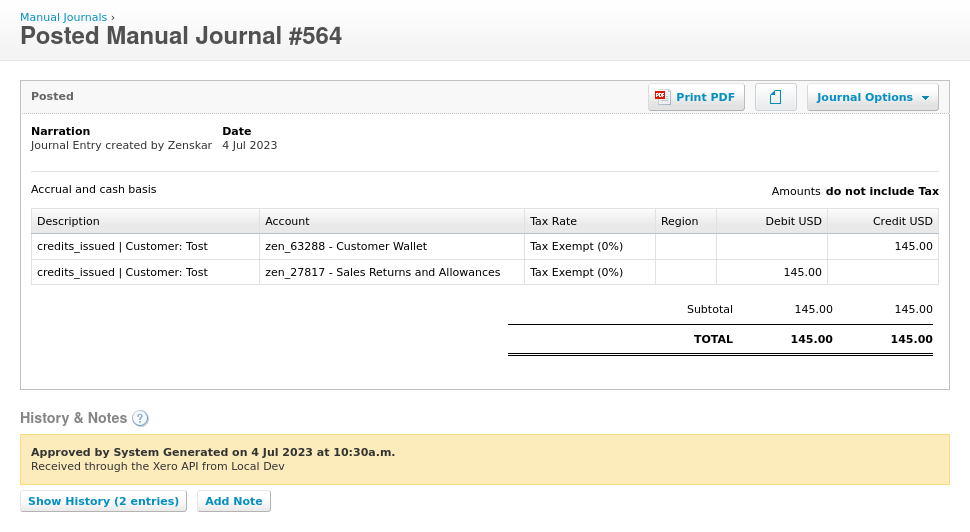
System account names for these entries are:
* **Customer Wallet**: 4a003f19-ae13-4fe2-b7bb-98666a8abcd
* **Expenses**: **Sales Returns and Allowances**: 4a003f19-ae13-4fe2-b7bb-98666a8abcd
### Example 2: When an invoice is approved
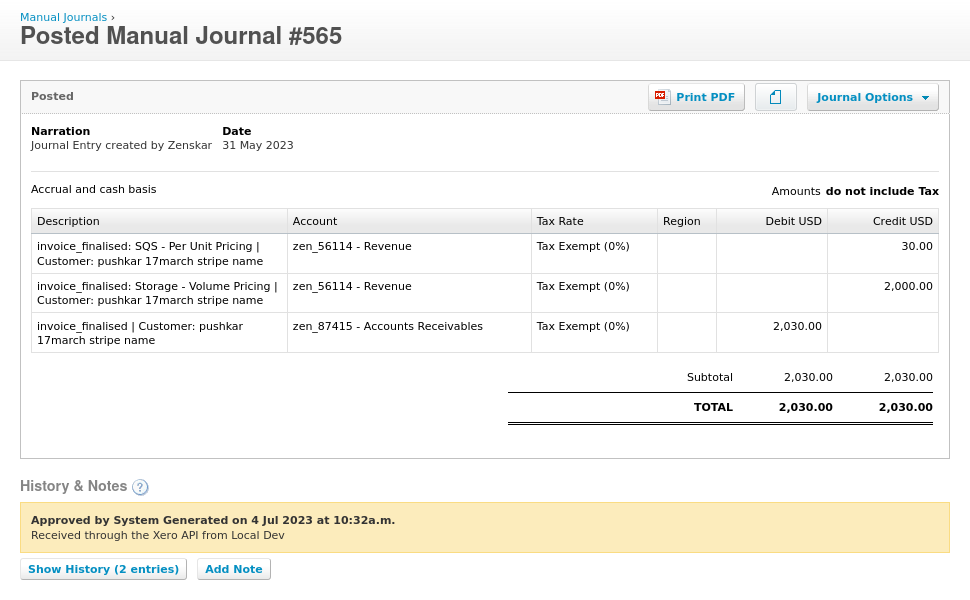
System account names for these entries are:
* **Revenue**: **Storage - Volume Pricing**: 4d24700c-29de-4351-aa5a-965e3334abcd
* **Revenue**: **SQS - Per Unit Pricing**: 4d24700c-29de-4351-aa5a-965e3334abcd
* **Assets**: **Accounts Receivable**: 4d24700c-29de-4351-aa5a-965e3334abcd
### Example 3: When a payment is made
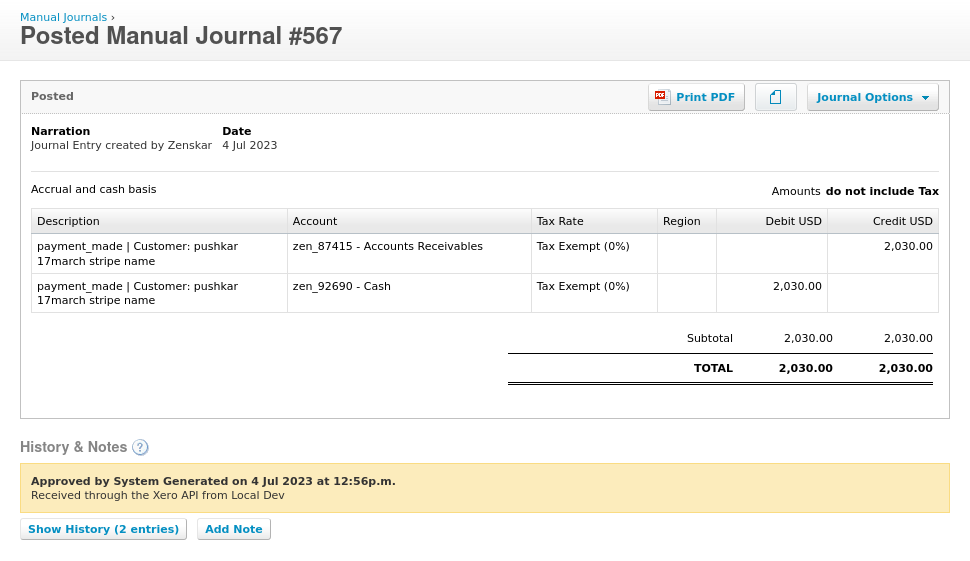
System account names for these entries were:\
**Assets**: **Cash**: 4d24700c-29de-4351-aa5a-965e3334abcd\
**Assets**: **Accounts Receivable**: 4d24700c-29de-4351-aa5a-965e3334abcd
Usually the last element in the system account name is customer Id. Therefore it is ignored. All the accounts visible in the entries are created according to the mapping. The customer visible in the description is also created on Xero if it is not already present.