
Documentation Index
Fetch the complete documentation index at: https://docs2.zenskar.com/llms.txt
Use this file to discover all available pages before exploring further.
🐕🦺 Setup guide
This guide will help you set up Google Sheets as a data source for Zenskar.Set up GCP
Create a service account
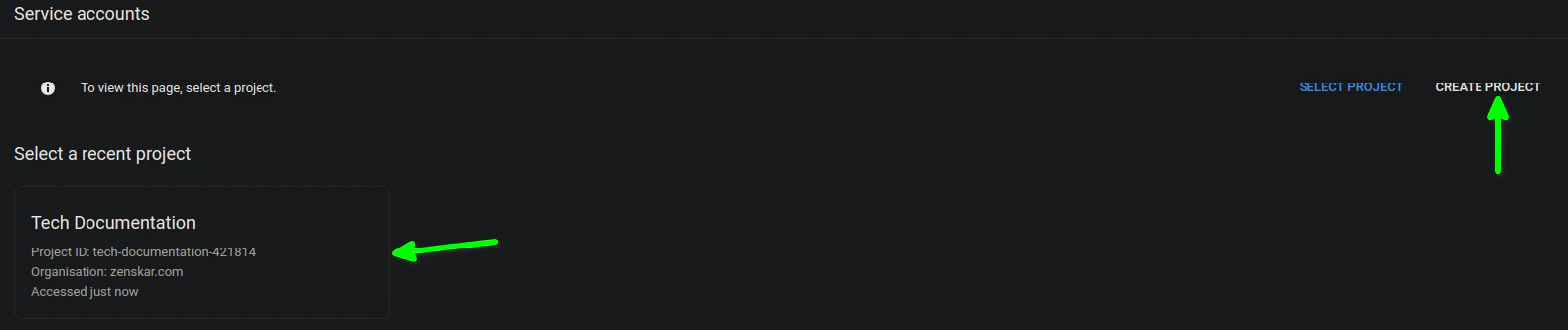
- Open the Service Accounts page in your Google Cloud console.
- Select an existing project, or create a new project.
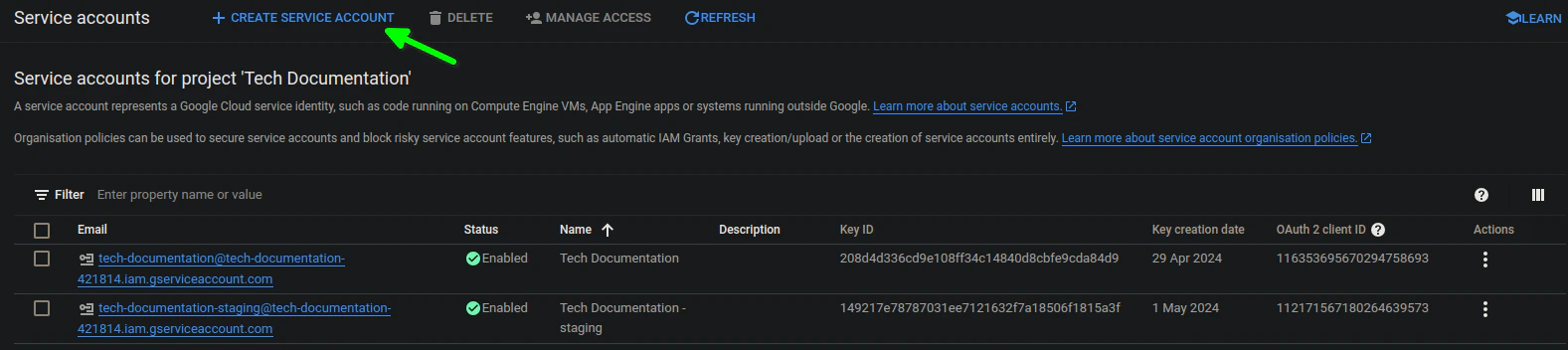
- At the top of the page, click + CREATE SERVICE ACCOUNT.
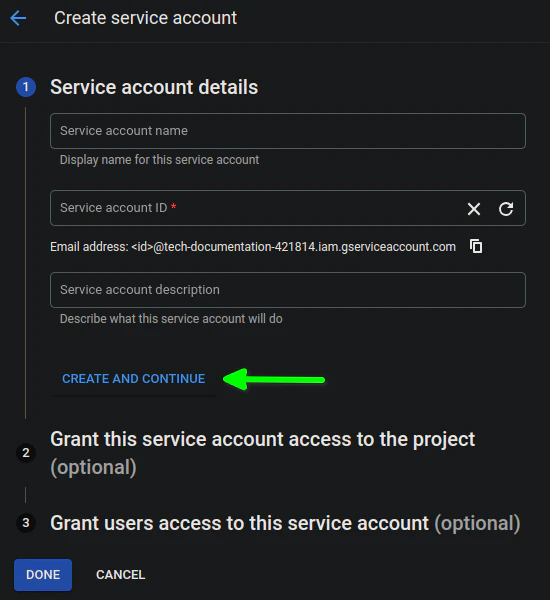
- Enter a name and description for the service account, then click CREATE AND CONTINUE.
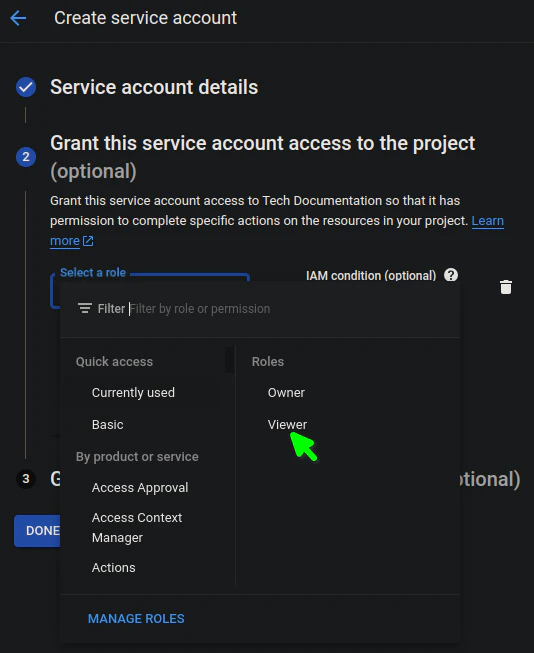
- Under Service account permissions, select the roles to grant to the service account, then click Continue. We recommend the Viewer role.
Generate a key
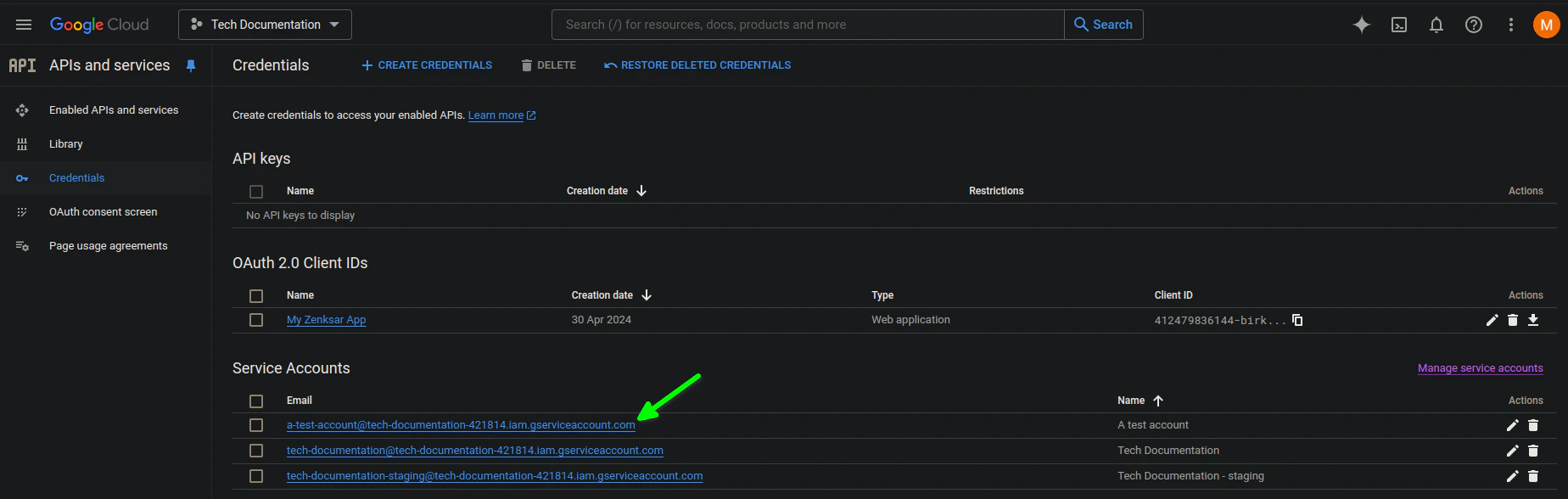
- Go to the APIs and services page and click on the email address of the service account you just created.
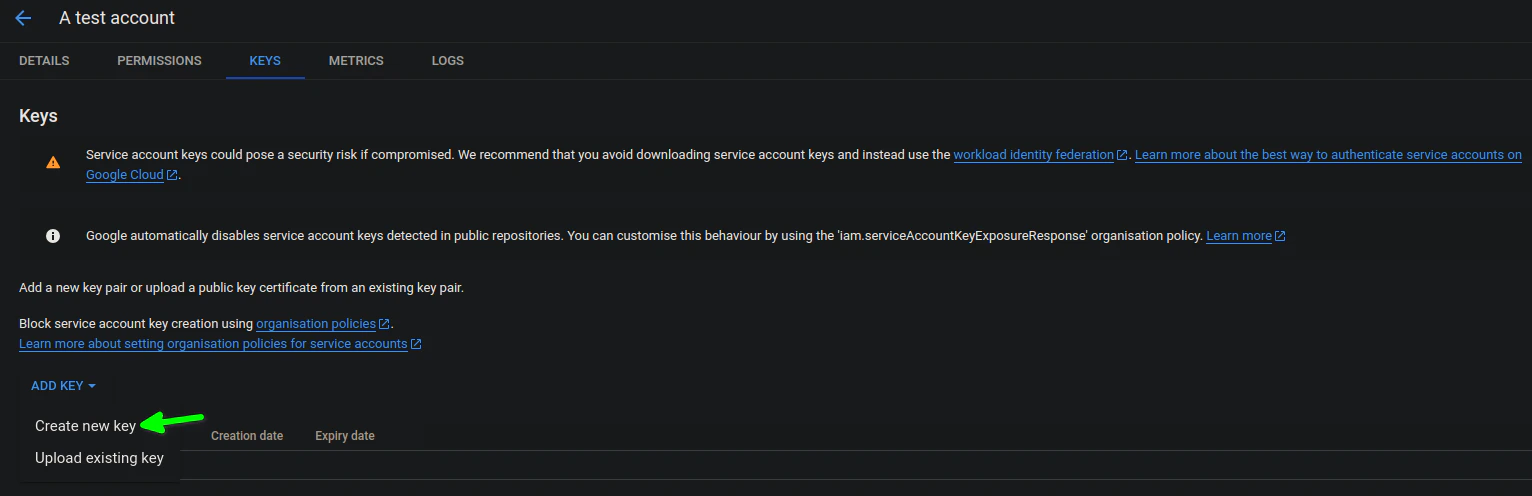
- In the Keys tab, click the ADD KEY drop-down menu, and click on the Create new key option.
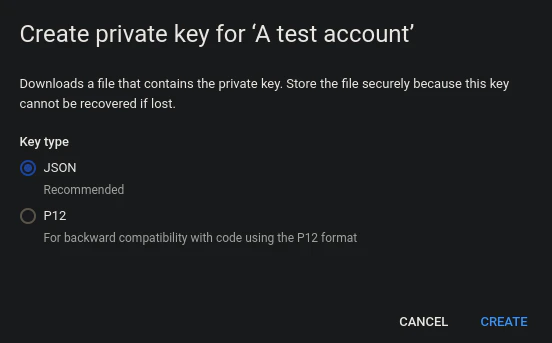
- Select JSON as the key type, and click CREATE. This will generate and download the JSON key file that you’ll use for authentication.
Enable the Google Sheets API
- Go to the API Library page.
- Ensure that the correct project is selected at the top of the page.
- Find and select the Google Sheets API from the API library.
- Click ENABLE.
Note
If your spreadsheet is viewable by anyone with its link, no further action is needed. If not, give your Service Account access to your spreadsheet.⚙️ Set up data source and type
- Log into your Zenskar account.
- In the left navigation bar, click Metering > Data Sources. In the top-right corner, click + ADD DATA SOURCE.
- In the Set Up Source section of the Add New Data Source page, enter a name for the Google Sheets data source connection.
- Select Google Sheets from the Source Type drop-down menu.
⚙️ Configure data source
Configure the following options in the Source Config section of the Add New Data Source page:- In Row Batch Size, define the number of records you want the Google API to fetch at a time. The default value is 200.
- Select the Service Account Key Authentication option from the Authentication Type drop-down menu.
- In the Service Account Information textbox, enter your service account key in JSON format.
Information
Zenskar’s Google Sheets data-source connector pulls data from a single Google Sheets spreadsheet. To replicate multiple spreadsheets, set up multiple Google Sheets data sources.Security
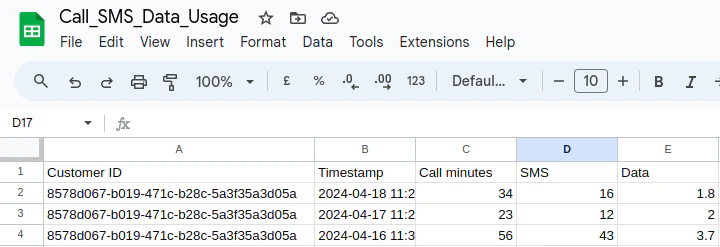
Zenskar only accesses the spreadsheet you want to replicate. We do not access any other file in your Google Drive.- In the Spreadsheet Link textbox, enter the link to the Google Sheets spreadsheet. To get the link, go to the Google spreadsheet you want to sync, click Share in the top right corner, and click Copy link.
- Click on the SAVE SOURCE button.
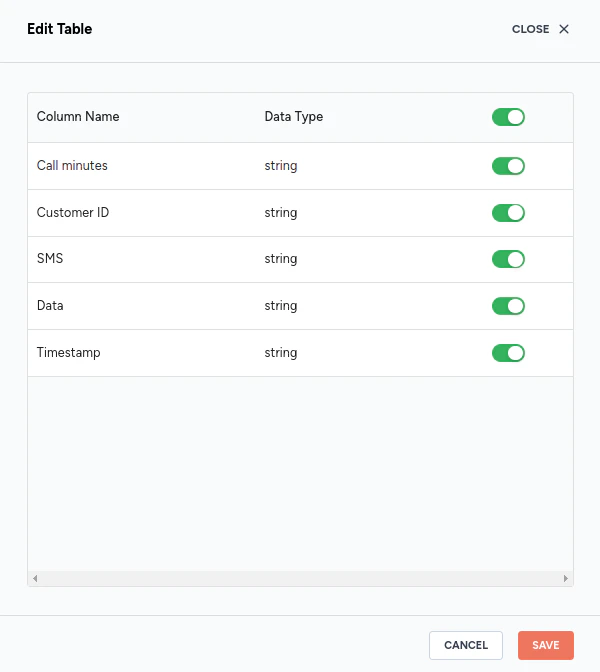
- You will be taken to the Sync Required Tables & Columns page where you can select the tables and columns you would like to sync with Zenskar.

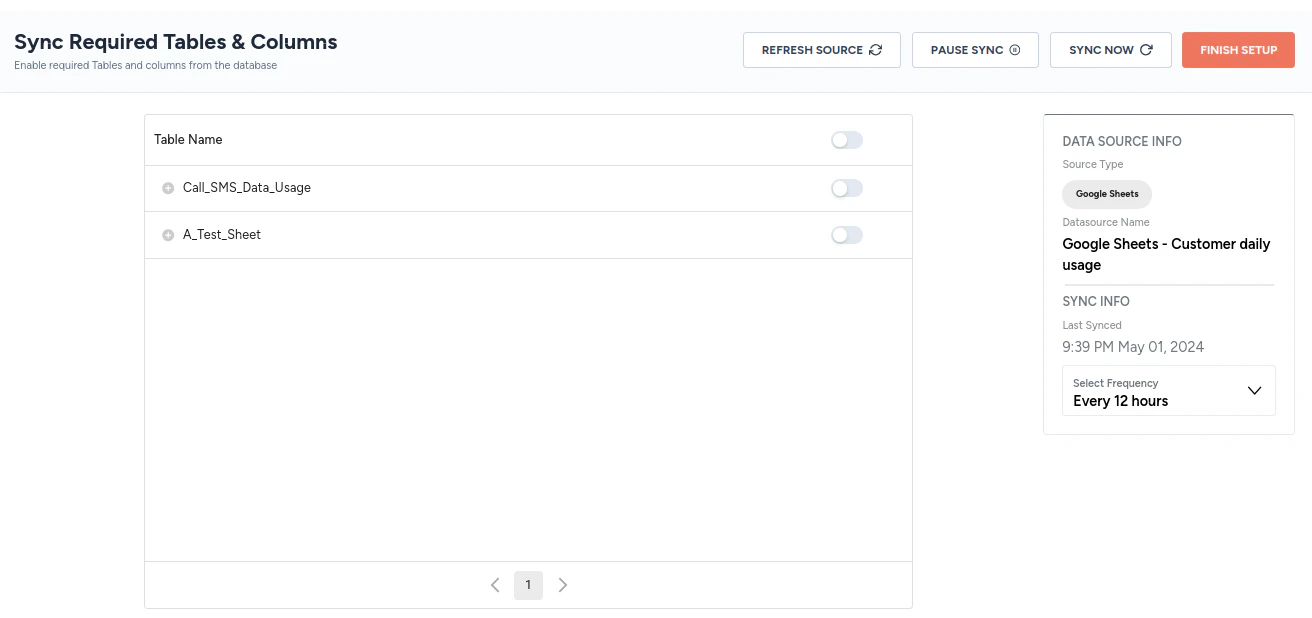
- Click on the FINISH SETUP button.