
Entitlement-usage alerts. Zenskar supports entitlement-usage alerts. Work is in progress to support other types of alerts, such as aggregate alerts.Documentation Index
Fetch the complete documentation index at: https://docs2.zenskar.com/llms.txt
Use this file to discover all available pages before exploring further.
⚙️ Configure an entitlement-usage alert
- Navigate to Communications > Usage Alerts in the left side-panel.
- You will arrive at Home/Communications/Usage Alerts page.
- On the Usage Alerts page, click on the + ADD USAGE ALERT button to land on the Home/Communications/Usage Alerts/Create New Usage Alert page.
-
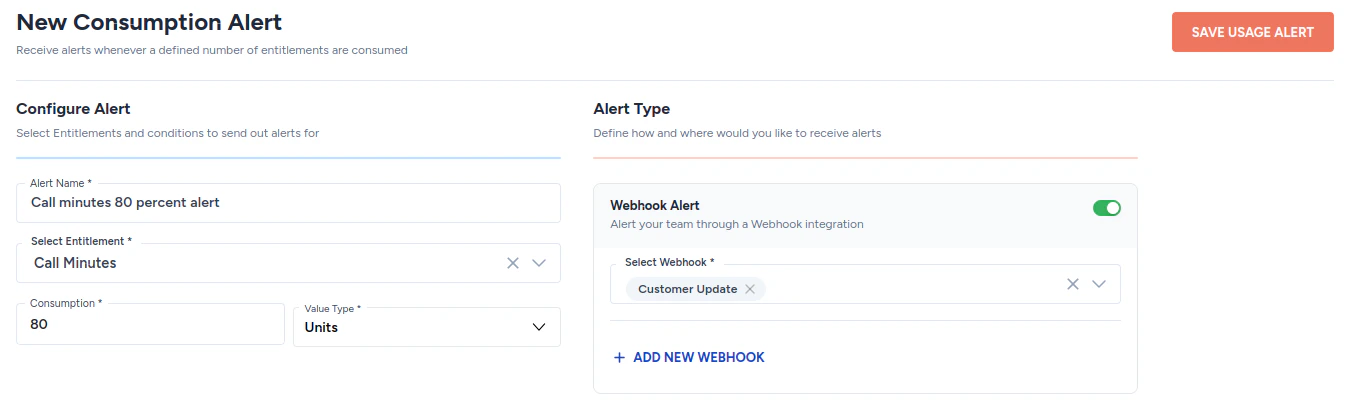
Add the following details:
- Alert name: any user-defined string that describes the alert.
- Select Entitlement: click the drop-down menu to select the entitlement on which you would like to configure the alert.
- Consumption and value type: these work in conjunction to define at what point an alert must be triggered.
- Webhook alert: click the drop-down menu to select the webhook you would like to trigger. Read the webhook documentation to understand how to create a webhook.
- Click on the SAVE USAGE ALERT button to save the alert.
⚙️ View entitlement-usage alerts
- Navigate to Communications > Usage Alerts in the left side-panel.
- You will arrive at Home/Communications/Usage Alerts page.
- On the Usage Alerts page, you can view all the alerts.

⚙️ Edit an entitlement-usage alert
- Navigate to Communications > Usage Alerts in the left side-panel.
- You will arrive at Home/Communications/Usage Alerts page.
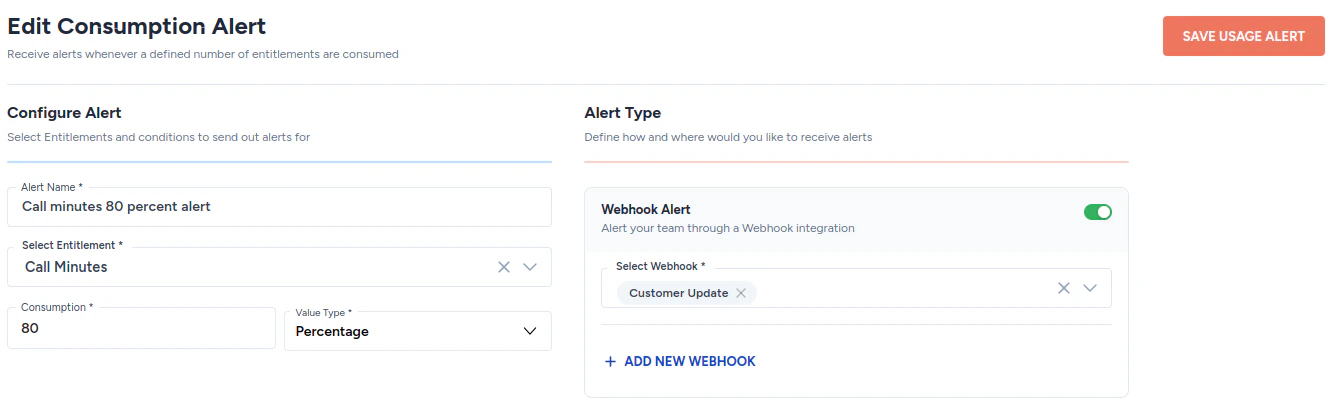
- On the Usage Alerts page, click on the alert that you wish to edit.
- Make the necessary edits and click on the SAVE USAGE ALERT button
⚙️ Pause or delete an entitlement-usage alert
- Navigate to Communications > Usage Alerts in the left side-panel.
- You will arrive at Home/Communications/Usage Alerts page.
- On the Usage Alerts page, click on the kebab menu as shown below.

